Zapier Chatbots: Keep Replies in Context and Plan Task Costs
Zapier Chatbots: Keep Replies in Context and Plan Task Costs
Insights
17 min

Use a Zap template or build a Zap from scratch, then add a Chatbots “Generate Reply to Message” action: map the Conversation Key and User Message fields, add a step that sends the reply back to your channel, test it, and publish. That’s the whole method. Before you start, budget for Zapier task usage and the AI model tier multiplier, since those determine what your integration actually costs to run each month.
TL;DR:
Templates for Slack, Gmail, Zendesk, and Facebook Messenger map the Conversation Key automatically; custom integrations need a stable thread, ticket, session, or email identifier.
A reply and delivery usually use two billable tasks per run, excluding the trigger; Standard costs 1x, Advanced 3x, and Premium 5x.
Filter out empty Conversation Keys before the chatbot step, using native identifiers such as Slack thread timestamps or helpdesk ticket IDs.
Zapier retries transient failures automatically, but missing keys and expired API credentials need correction; route failed runs to an alert and review them weekly.
DroxyKeep Customer Replies MovingDroxy deploys customizable AI agents across chat, phone, and messaging channels to answer customer inquiries instantly, around the clock.Explore Droxy
Table of Contents
Quick Checklist: Connect Your Chatbot to Zapier (No-Code)
How to Configure the Trigger and the “Generate Reply to Message” Action
Keeping Conversation Context: Conversation Keys, Threading, and Continuity
Zapier Task Usage, AI Model Tiers, and Cost or Limits to Plan For
Test, Common Errors, and How to Fix Them
How Droxy Can Simplify Zapier Integrations
Handling Error Notifications and Retry Logic in Zap Workflows
Examples of Advanced Zap Workflows Integrating Chatbots With CRM or Marketing Tools
Step-by-Step Troubleshooting Guide Beyond Common Errors
Tips for Optimizing Performance and Reducing Latency in Chatbot-Zapier Integrations
Author Perspective: Practical Rules of Thumb From Experience
How Droxy Helps You Connect Chatbots to Zapier
Sources
Quick Checklist: Connect Your Chatbot to Zapier (No-Code)
You don’t need a developer to get this running. Follow these steps in order and you’ll have a working integration in under an hour.
Choose a Zap template built for your channel (Slack, Gmail, Zendesk, or Facebook Messenger) or start a Zap from scratch if your setup is unique.
Set the trigger event to whatever represents an incoming user message, such as a new Slack message or a new email in Gmail.
Add the Chatbots action and select “Generate Reply to Message” from the action list.
Map the Conversation Key (a thread ID, ticket ID, or session ID) and the User Message field so the AI knows what was said and in which conversation.
Add a final action that sends the generated reply back to the original channel, run a test, and publish the Zap.
Zap templates exist specifically to shortcut this process. Templates for Slack, Gmail, Zendesk, and Facebook Messenger come with the Conversation Key already mapped correctly, which cuts down on the broken reply chains that trip up first-time setups. If you’re integrating a channel without a ready-made template, building from scratch takes a few extra minutes but follows the same five steps.
How to Configure the Trigger and the “Generate Reply to Message” Action
Your trigger has to represent one clear event: a new message arriving. In Slack that’s usually a new message in a channel. In Gmail it’s a new email matching a search. For custom setups, a webhook trigger gives you the most control over exactly what data reaches your chatbot.
Once the trigger is set, add the Chatbots action and select “Generate Reply to Message.” This is the step that actually sends the message to your AI and gets a response back.
The Configure section asks for two required fields: Conversation Key and User Message.
Conversation Key should point to a stable identifier from your trigger app, not something that changes every run.
User Message should map directly to the text content of the incoming message, not metadata or timestamps.
If the raw trigger data is messy, insert a Formatter or Text step before the Chatbots action to clean or extract the exact text you need.
Pro Tip: Run a single test message through your Formatter step before connecting it to the Chatbots action, so you catch formatting issues before they reach the AI.
Keeping Conversation Context: Conversation Keys, Threading, and Continuity
A chatbot that forgets who it’s talking to isn’t much of a chatbot. The Conversation Key is what prevents that, and getting it wrong is the most common reason replies lose their thread.
Different channels give you different natural keys to work with:
Slack: use the thread timestamp (
thread_ts) so replies stay attached to the right conversation.Zendesk or similar helpdesks: use the ticket ID.
Email or webhook-based setups: use the sender’s email address or a session ID generated earlier in the Zap.
Prefer whatever key is native to the channel first. When no native thread ID exists, fall back to session IDs or email addresses rather than leaving the field blank. Add a conditional filter upstream to catch empty keys before they reach the Chatbots action, since an empty Conversation Key is a near-guaranteed path to a failed or disconnected reply. Templates handle this mapping automatically for supported apps; for anything custom, you’ll set the logic yourself in the Zap editor.
Zapier Task Usage, AI Model Tiers, and Cost or Limits to Plan For
Every action step in your Zap counts as a task, and AI steps add a multiplier on top of that count. Understanding this before you scale up saves you from a paused Zap mid-month.
A trigger plus two action steps (Chatbots reply, send-back action) typically counts as two tasks per run, not counting the trigger itself.
AI model tiers carry their own multipliers: Standard runs at 1x, Advanced at 3x, and Premium at 5x task cost.
Estimate monthly usage with a simple formula: expected events per month times number of actions times the model multiplier.
Zapier bills AI steps by model tier, with Advanced models costing three times the task usage of Standard and Premium costing five times as much. That multiplier changes your monthly task math fast if you pick a higher tier without checking the cost first.
Check your usage regularly in the Zapier Admin Center rather than waiting for a Zap to pause. If you’re close to your limit, enable pay-per-task overage or upgrade your plan proactively.
Test, Common Errors, and How to Fix Them
Before publishing, run the Chatbots step test directly in the Zap editor and check the output against what you expect. If something looks off, open your Zap history to see the exact data that passed through each step.
Test the Chatbots action with a real sample message, then confirm the reply text matches the tone and content you expect.
If you see an empty User Message error, add a default value or a conditional filter upstream so blank fields never reach the action.
If you hit a token limit error, shorten your directive text, add a Formatter step to chunk long messages, or switch to a model with a larger context window.
Double check your API key and model selection whenever a step fails silently. A misconfigured key often looks identical to a mapping error.
Pro Tip: Keep your chatbot directive under a few hundred words. Shorter instructions leave more token budget for the actual conversation and cut down on limit errors.
How Droxy Can Simplify Zapier Integrations
For teams that want chatbot deployment without wiring every trigger by hand, a no-code platform built for multiple channels can take over the heavy lifting. We built Droxy to deploy AI agents across website chat, phone, WhatsApp, Instagram, Facebook, and Shopify from a single dashboard.
We support API capabilities for saving conversations and for chatbot-to-chatbot streaming, which pairs naturally with Zapier-compatible automation workflows.
Teams choose Droxy for faster deployment across channels, since one setup covers every major messaging surface instead of configuring each separately.
Our agents keep your brand’s own voice and tone consistent across every channel they run on.
A short proof-of-concept integration is the fastest way to confirm Droxy fits your existing Zap workflows before committing further.
If you want a working chatbot live on your site before you even touch Zapier, our guide on adding a chatbot to your website walks through a no-code setup in about 15 minutes.
Handling Error Notifications and Retry Logic in Zap Workflows
A Zap that fails silently is worse than one that fails loudly. Build error visibility into your workflow from the start, not after something breaks in production.
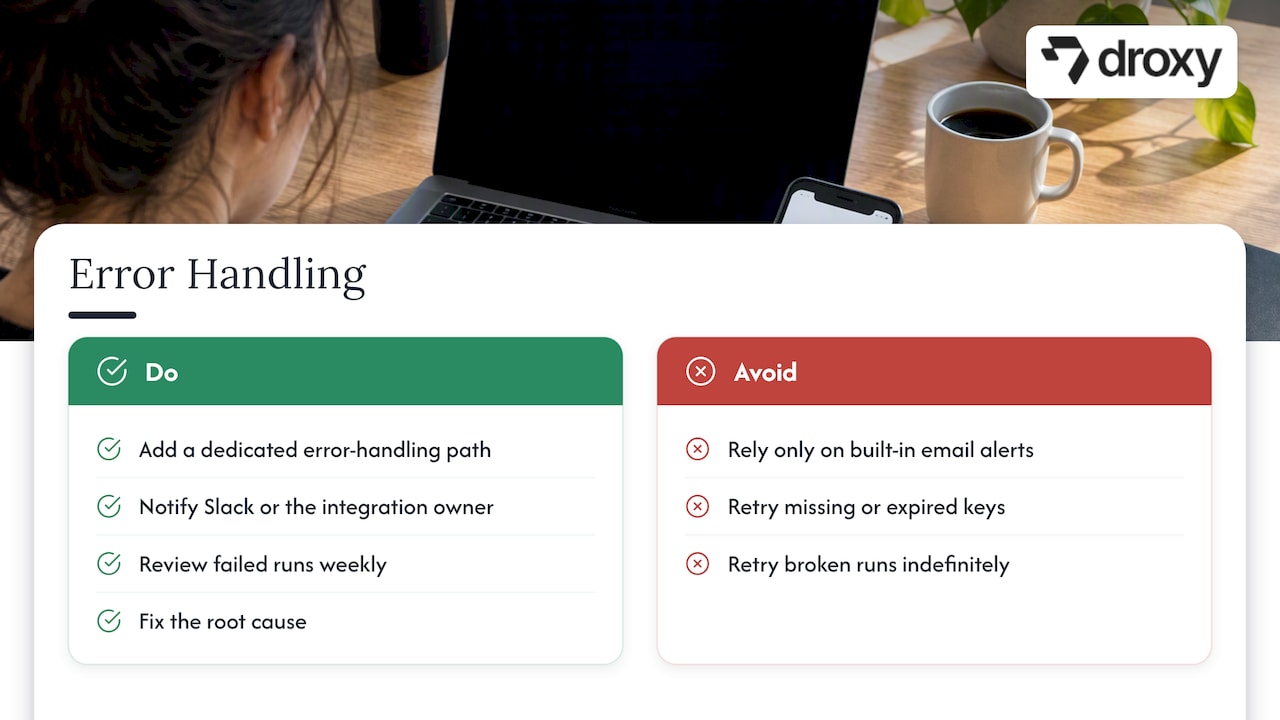
Zapier sends built-in email alerts when a Zap step fails, but relying on that alone means you find out about problems after they’ve piled up. Add a dedicated error-handling path: a Filter step that catches failed conditions, paired with an action that posts a notification to a Slack channel or sends an email to whoever owns the integration. This turns a single missed alert into a visible, trackable event.
For retry logic, most step failures in Zapier are retried automatically a limited number of times before the run is marked as an error. That automatic retry handles transient issues like a brief API timeout, but it won’t fix a structural problem like a missing Conversation Key or an expired API key. Those need a permanent fix, not another retry.
Set up a dedicated “error Zap” that triggers whenever your main Zap fails, using Zapier’s built-in error paths or a Webhooks step pointed at your own logging tool. Review failed runs weekly during your first month live, since early patterns in failures usually point to one or two root causes: a bad field mapping, an inconsistent key format, or a trigger app sending unexpected data. Fixing the root cause beats retrying the same broken run indefinitely.
Examples of Advanced Zap Workflows Integrating Chatbots With CRM or Marketing Tools
Once your basic chatbot reply loop works, the real value shows up when you connect it to the tools that run your sales and marketing. A few patterns come up again and again.
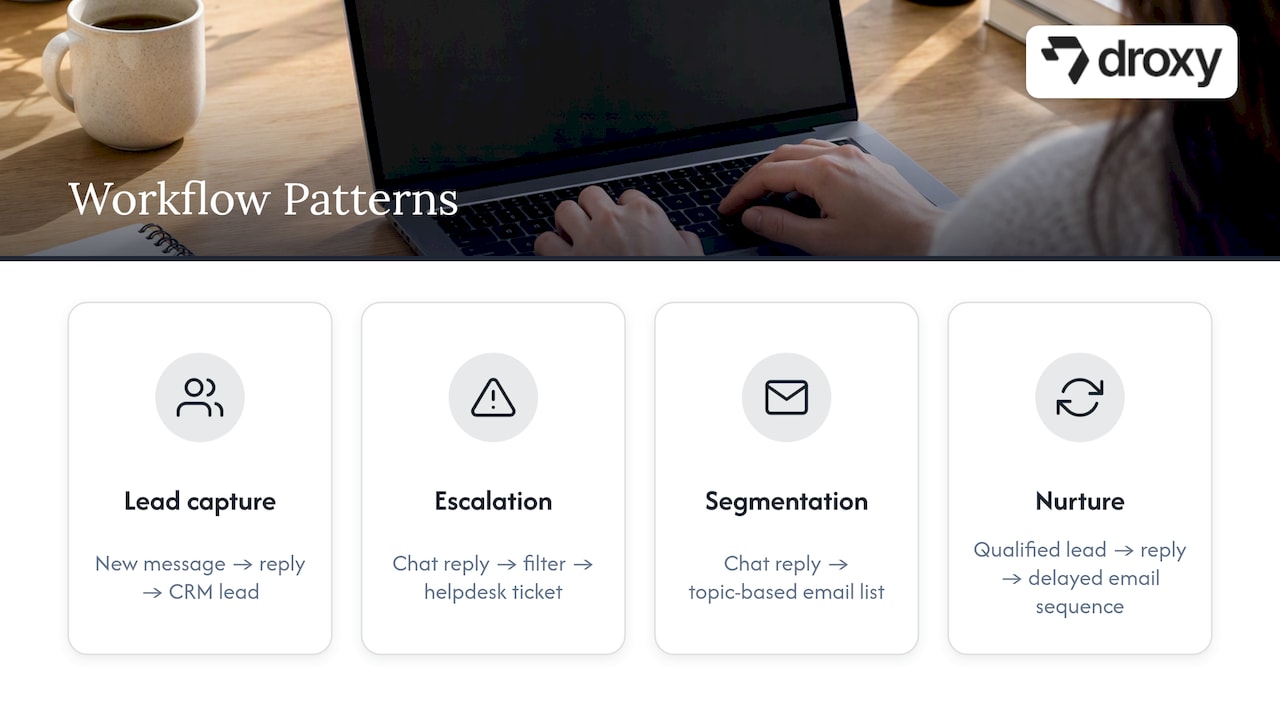
Lead capture to CRM. A new chat message triggers the Chatbots reply action, and the conversation summary plus contact details get pushed into a CRM record as a new lead, tagged by the channel it came from.
Support escalation routing. A chatbot reply action runs first, and a Filter step checks the response for escalation keywords. If found, the Zap creates a ticket in your helpdesk tool and notifies a human agent instead of sending the AI reply.
Marketing list segmentation. Every completed chatbot conversation triggers a Zap that adds the contact to an email marketing list, segmented by the topic or intent detected in the conversation.
Multi-step nurture sequences. A chatbot qualifies a lead through conversation, then a Zap adds that contact to an automated email sequence in your marketing tool, with delay steps spacing out follow-up messages.
Each of these follows the same core shape: trigger, Chatbots reply action, then a branching step that routes the outcome somewhere useful instead of just sending a reply back to the user. For broader inspiration on building these kinds of workflows, our partner Omnivance Media’s guide to AI-powered CRM automation covers additional patterns worth adapting.
Step-by-Step Troubleshooting Guide Beyond Common Errors
Most chatbot-to-Zapier problems fall into the token limit or empty field categories already covered, but a few issues show up only after a Zap has been running for a while.
Replies lose context mid-conversation. Check whether your Conversation Key format changed somewhere upstream, such as a trigger app updating its data structure. A key that worked for weeks can silently break after an app update.
Zap runs successfully but no reply reaches the user. Check the final send-back action separately from the Chatbots action. A successful AI reply with a broken delivery step looks identical to a total failure in your Zap history unless you inspect each step individually.
Replies work in testing but fail in production. Compare the exact data shape of your test payload against a real production message. Test data is often cleaner than what live users actually send.
Intermittent failures with no clear pattern. Check whether you’re brushing against your Zapier task limit for the billing period, since throttling can look like a random failure.
Formatter steps return unexpected blank values. Confirm the field you’re extracting from actually exists on every incoming message, not just the ones you tested with.
Our chatbot best practices guide covers additional operational tips worth pairing with this troubleshooting list, especially around keeping directives consistent as your chatbot scales.
Tips for Optimizing Performance and Reducing Latency in Chatbot-Zapier Integrations
Speed matters more than it seems once a chatbot is handling live conversations. A slow reply feels broken even when it technically isn’t.
Keep your chatbot directive short. Long, over-detailed instructions take longer to process and eat into your token budget before the actual conversation even starts. A tight, specific directive gets a faster and more consistent reply than a sprawling one.
Reduce the number of steps between trigger and reply. Every Formatter or Filter step adds a small amount of processing time. Use them where they genuinely clean or validate data, and skip them where the raw trigger data is already usable.
Choose your model tier deliberately rather than defaulting to the highest option. A Premium-tier model costs five times the task usage of Standard and isn’t always faster. For straightforward reply generation, a Standard or Advanced tier often performs well without the added task cost.
Batch non-urgent actions separately from the reply path. If your Zap also logs data to a spreadsheet or updates a CRM, consider whether that step needs to happen before the user gets their reply or can run in parallel after it. Splitting time-sensitive and non-time-sensitive actions into separate Zap paths keeps the user-facing reply fast.
Finally, monitor your Zap history for steps that consistently take longer than others. A slow trigger app or an overloaded webhook endpoint is often the real bottleneck, not the AI step itself.
Author Perspective: Practical Rules of Thumb From Experience
Start with a template, not a blank Zap. Validate your Conversation Key mapping before adding a single extra step. Set your task budget on day one and check usage closely for the first week or two, since that’s when surprises show up. Keep directives short to avoid token errors. The moment a workflow needs complex data transforms or branching logic, bring in an engineer rather than forcing it through no-code steps alone.
— Elena
How Droxy Helps You Connect Chatbots to Zapier
If piecing together triggers, keys, and reply actions sounds like more setup than you want to manage, we built Droxy to handle the channel side of this for you. Instead of configuring a separate chatbot connection for every app, we give you one agent that already works across the channels your customers use, with API features designed to pair with Zapier-style automation.
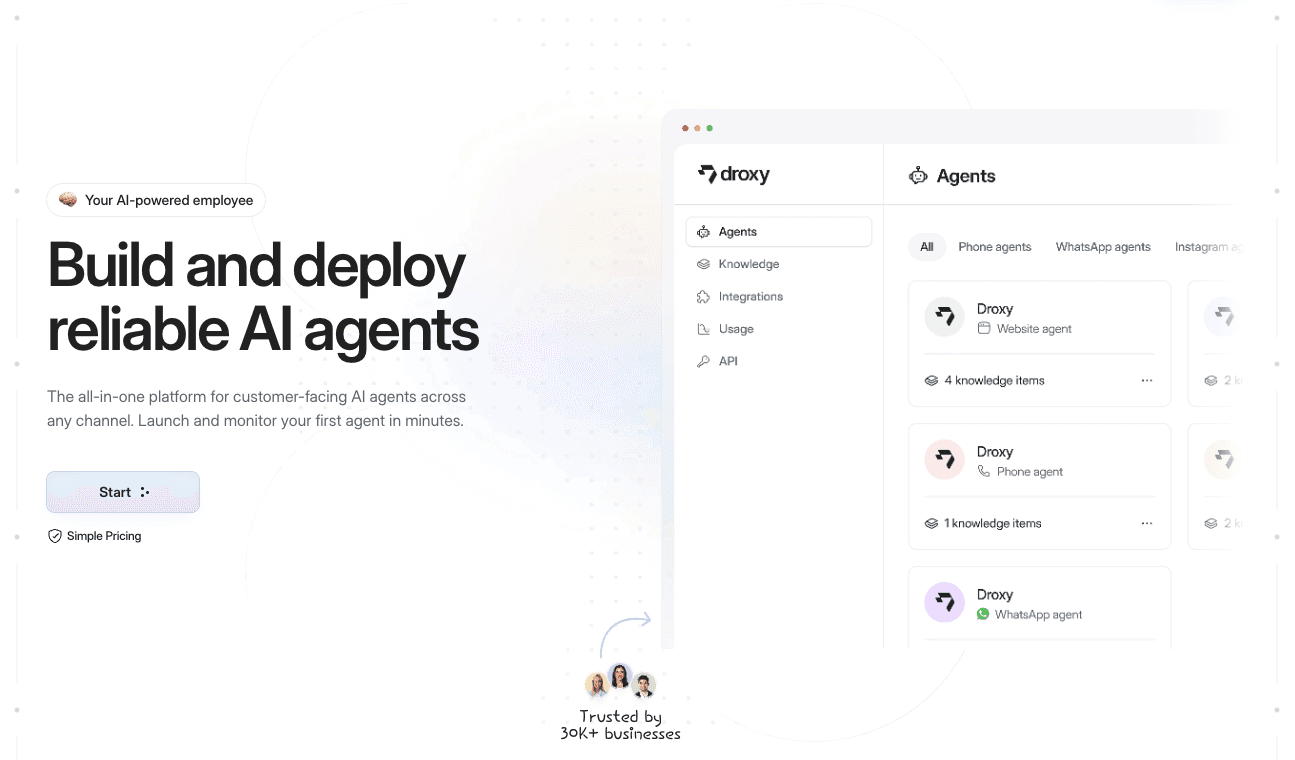
We cover multiple major messaging channels from a single setup.
Our plans, Basic, Advanced, and Enterprise, scale with how many channels and conversations you need.
Starting with a short proof-of-concept lets you confirm fit before committing to a full rollout.
Check our pricing page to compare plans, or visit App to start building your first agent today.
FAQ
How do I connect a chatbot to Zapier without coding?
Use a Zap template or build a Zap from scratch, add the Chatbots “Generate Reply to Message” action, map the Conversation Key and User Message fields, then test and publish. No code is required for this setup since Zapier’s editor handles the connection between apps visually.
What is a Conversation Key and why does it matter?
A Conversation Key is a unique identifier, like a Slack thread timestamp or a ticket ID, that keeps a chatbot’s replies attached to the right conversation. Without it mapped consistently, replies lose their thread and conversations break apart.
How does Zapier charge for AI chatbot replies?
Each AI reply counts as a task, and the cost multiplies based on model tier: Standard runs at 1x, Advanced at 3x, and Premium at 5x task usage. Picking a lower tier for straightforward replies keeps your monthly task count predictable.
Why do I get a token limit error in my chatbot Zap?
A token limit error happens when the combined length of your directive and the conversation exceeds what the model can process at once. Shortening your directive, chunking long text with a Formatter step, or switching to a larger-context model usually resolves it.
Does Droxy work with Zapier for chatbot automation?
Droxy supports API capabilities built to pair with Zapier-compatible workflows, including saving conversations and chatbot-to-chatbot streaming. Plans are listed on our pricing page for teams evaluating a no-code chatbot platform alongside their automation setup.
Recommended
Use a Zap template or build a Zap from scratch, then add a Chatbots “Generate Reply to Message” action: map the Conversation Key and User Message fields, add a step that sends the reply back to your channel, test it, and publish. That’s the whole method. Before you start, budget for Zapier task usage and the AI model tier multiplier, since those determine what your integration actually costs to run each month.
TL;DR:
Templates for Slack, Gmail, Zendesk, and Facebook Messenger map the Conversation Key automatically; custom integrations need a stable thread, ticket, session, or email identifier.
A reply and delivery usually use two billable tasks per run, excluding the trigger; Standard costs 1x, Advanced 3x, and Premium 5x.
Filter out empty Conversation Keys before the chatbot step, using native identifiers such as Slack thread timestamps or helpdesk ticket IDs.
Zapier retries transient failures automatically, but missing keys and expired API credentials need correction; route failed runs to an alert and review them weekly.
DroxyKeep Customer Replies MovingDroxy deploys customizable AI agents across chat, phone, and messaging channels to answer customer inquiries instantly, around the clock.Explore Droxy
Table of Contents
Quick Checklist: Connect Your Chatbot to Zapier (No-Code)
How to Configure the Trigger and the “Generate Reply to Message” Action
Keeping Conversation Context: Conversation Keys, Threading, and Continuity
Zapier Task Usage, AI Model Tiers, and Cost or Limits to Plan For
Test, Common Errors, and How to Fix Them
How Droxy Can Simplify Zapier Integrations
Handling Error Notifications and Retry Logic in Zap Workflows
Examples of Advanced Zap Workflows Integrating Chatbots With CRM or Marketing Tools
Step-by-Step Troubleshooting Guide Beyond Common Errors
Tips for Optimizing Performance and Reducing Latency in Chatbot-Zapier Integrations
Author Perspective: Practical Rules of Thumb From Experience
How Droxy Helps You Connect Chatbots to Zapier
Sources
Quick Checklist: Connect Your Chatbot to Zapier (No-Code)
You don’t need a developer to get this running. Follow these steps in order and you’ll have a working integration in under an hour.
Choose a Zap template built for your channel (Slack, Gmail, Zendesk, or Facebook Messenger) or start a Zap from scratch if your setup is unique.
Set the trigger event to whatever represents an incoming user message, such as a new Slack message or a new email in Gmail.
Add the Chatbots action and select “Generate Reply to Message” from the action list.
Map the Conversation Key (a thread ID, ticket ID, or session ID) and the User Message field so the AI knows what was said and in which conversation.
Add a final action that sends the generated reply back to the original channel, run a test, and publish the Zap.
Zap templates exist specifically to shortcut this process. Templates for Slack, Gmail, Zendesk, and Facebook Messenger come with the Conversation Key already mapped correctly, which cuts down on the broken reply chains that trip up first-time setups. If you’re integrating a channel without a ready-made template, building from scratch takes a few extra minutes but follows the same five steps.
How to Configure the Trigger and the “Generate Reply to Message” Action
Your trigger has to represent one clear event: a new message arriving. In Slack that’s usually a new message in a channel. In Gmail it’s a new email matching a search. For custom setups, a webhook trigger gives you the most control over exactly what data reaches your chatbot.
Once the trigger is set, add the Chatbots action and select “Generate Reply to Message.” This is the step that actually sends the message to your AI and gets a response back.
The Configure section asks for two required fields: Conversation Key and User Message.
Conversation Key should point to a stable identifier from your trigger app, not something that changes every run.
User Message should map directly to the text content of the incoming message, not metadata or timestamps.
If the raw trigger data is messy, insert a Formatter or Text step before the Chatbots action to clean or extract the exact text you need.
Pro Tip: Run a single test message through your Formatter step before connecting it to the Chatbots action, so you catch formatting issues before they reach the AI.
Keeping Conversation Context: Conversation Keys, Threading, and Continuity
A chatbot that forgets who it’s talking to isn’t much of a chatbot. The Conversation Key is what prevents that, and getting it wrong is the most common reason replies lose their thread.
Different channels give you different natural keys to work with:
Slack: use the thread timestamp (
thread_ts) so replies stay attached to the right conversation.Zendesk or similar helpdesks: use the ticket ID.
Email or webhook-based setups: use the sender’s email address or a session ID generated earlier in the Zap.
Prefer whatever key is native to the channel first. When no native thread ID exists, fall back to session IDs or email addresses rather than leaving the field blank. Add a conditional filter upstream to catch empty keys before they reach the Chatbots action, since an empty Conversation Key is a near-guaranteed path to a failed or disconnected reply. Templates handle this mapping automatically for supported apps; for anything custom, you’ll set the logic yourself in the Zap editor.
Zapier Task Usage, AI Model Tiers, and Cost or Limits to Plan For
Every action step in your Zap counts as a task, and AI steps add a multiplier on top of that count. Understanding this before you scale up saves you from a paused Zap mid-month.
A trigger plus two action steps (Chatbots reply, send-back action) typically counts as two tasks per run, not counting the trigger itself.
AI model tiers carry their own multipliers: Standard runs at 1x, Advanced at 3x, and Premium at 5x task cost.
Estimate monthly usage with a simple formula: expected events per month times number of actions times the model multiplier.
Zapier bills AI steps by model tier, with Advanced models costing three times the task usage of Standard and Premium costing five times as much. That multiplier changes your monthly task math fast if you pick a higher tier without checking the cost first.
Check your usage regularly in the Zapier Admin Center rather than waiting for a Zap to pause. If you’re close to your limit, enable pay-per-task overage or upgrade your plan proactively.
Test, Common Errors, and How to Fix Them
Before publishing, run the Chatbots step test directly in the Zap editor and check the output against what you expect. If something looks off, open your Zap history to see the exact data that passed through each step.
Test the Chatbots action with a real sample message, then confirm the reply text matches the tone and content you expect.
If you see an empty User Message error, add a default value or a conditional filter upstream so blank fields never reach the action.
If you hit a token limit error, shorten your directive text, add a Formatter step to chunk long messages, or switch to a model with a larger context window.
Double check your API key and model selection whenever a step fails silently. A misconfigured key often looks identical to a mapping error.
Pro Tip: Keep your chatbot directive under a few hundred words. Shorter instructions leave more token budget for the actual conversation and cut down on limit errors.
How Droxy Can Simplify Zapier Integrations
For teams that want chatbot deployment without wiring every trigger by hand, a no-code platform built for multiple channels can take over the heavy lifting. We built Droxy to deploy AI agents across website chat, phone, WhatsApp, Instagram, Facebook, and Shopify from a single dashboard.
We support API capabilities for saving conversations and for chatbot-to-chatbot streaming, which pairs naturally with Zapier-compatible automation workflows.
Teams choose Droxy for faster deployment across channels, since one setup covers every major messaging surface instead of configuring each separately.
Our agents keep your brand’s own voice and tone consistent across every channel they run on.
A short proof-of-concept integration is the fastest way to confirm Droxy fits your existing Zap workflows before committing further.
If you want a working chatbot live on your site before you even touch Zapier, our guide on adding a chatbot to your website walks through a no-code setup in about 15 minutes.
Handling Error Notifications and Retry Logic in Zap Workflows
A Zap that fails silently is worse than one that fails loudly. Build error visibility into your workflow from the start, not after something breaks in production.
Zapier sends built-in email alerts when a Zap step fails, but relying on that alone means you find out about problems after they’ve piled up. Add a dedicated error-handling path: a Filter step that catches failed conditions, paired with an action that posts a notification to a Slack channel or sends an email to whoever owns the integration. This turns a single missed alert into a visible, trackable event.
For retry logic, most step failures in Zapier are retried automatically a limited number of times before the run is marked as an error. That automatic retry handles transient issues like a brief API timeout, but it won’t fix a structural problem like a missing Conversation Key or an expired API key. Those need a permanent fix, not another retry.
Set up a dedicated “error Zap” that triggers whenever your main Zap fails, using Zapier’s built-in error paths or a Webhooks step pointed at your own logging tool. Review failed runs weekly during your first month live, since early patterns in failures usually point to one or two root causes: a bad field mapping, an inconsistent key format, or a trigger app sending unexpected data. Fixing the root cause beats retrying the same broken run indefinitely.
Examples of Advanced Zap Workflows Integrating Chatbots With CRM or Marketing Tools
Once your basic chatbot reply loop works, the real value shows up when you connect it to the tools that run your sales and marketing. A few patterns come up again and again.
Lead capture to CRM. A new chat message triggers the Chatbots reply action, and the conversation summary plus contact details get pushed into a CRM record as a new lead, tagged by the channel it came from.
Support escalation routing. A chatbot reply action runs first, and a Filter step checks the response for escalation keywords. If found, the Zap creates a ticket in your helpdesk tool and notifies a human agent instead of sending the AI reply.
Marketing list segmentation. Every completed chatbot conversation triggers a Zap that adds the contact to an email marketing list, segmented by the topic or intent detected in the conversation.
Multi-step nurture sequences. A chatbot qualifies a lead through conversation, then a Zap adds that contact to an automated email sequence in your marketing tool, with delay steps spacing out follow-up messages.
Each of these follows the same core shape: trigger, Chatbots reply action, then a branching step that routes the outcome somewhere useful instead of just sending a reply back to the user. For broader inspiration on building these kinds of workflows, our partner Omnivance Media’s guide to AI-powered CRM automation covers additional patterns worth adapting.
Step-by-Step Troubleshooting Guide Beyond Common Errors
Most chatbot-to-Zapier problems fall into the token limit or empty field categories already covered, but a few issues show up only after a Zap has been running for a while.
Replies lose context mid-conversation. Check whether your Conversation Key format changed somewhere upstream, such as a trigger app updating its data structure. A key that worked for weeks can silently break after an app update.
Zap runs successfully but no reply reaches the user. Check the final send-back action separately from the Chatbots action. A successful AI reply with a broken delivery step looks identical to a total failure in your Zap history unless you inspect each step individually.
Replies work in testing but fail in production. Compare the exact data shape of your test payload against a real production message. Test data is often cleaner than what live users actually send.
Intermittent failures with no clear pattern. Check whether you’re brushing against your Zapier task limit for the billing period, since throttling can look like a random failure.
Formatter steps return unexpected blank values. Confirm the field you’re extracting from actually exists on every incoming message, not just the ones you tested with.
Our chatbot best practices guide covers additional operational tips worth pairing with this troubleshooting list, especially around keeping directives consistent as your chatbot scales.
Tips for Optimizing Performance and Reducing Latency in Chatbot-Zapier Integrations
Speed matters more than it seems once a chatbot is handling live conversations. A slow reply feels broken even when it technically isn’t.
Keep your chatbot directive short. Long, over-detailed instructions take longer to process and eat into your token budget before the actual conversation even starts. A tight, specific directive gets a faster and more consistent reply than a sprawling one.
Reduce the number of steps between trigger and reply. Every Formatter or Filter step adds a small amount of processing time. Use them where they genuinely clean or validate data, and skip them where the raw trigger data is already usable.
Choose your model tier deliberately rather than defaulting to the highest option. A Premium-tier model costs five times the task usage of Standard and isn’t always faster. For straightforward reply generation, a Standard or Advanced tier often performs well without the added task cost.
Batch non-urgent actions separately from the reply path. If your Zap also logs data to a spreadsheet or updates a CRM, consider whether that step needs to happen before the user gets their reply or can run in parallel after it. Splitting time-sensitive and non-time-sensitive actions into separate Zap paths keeps the user-facing reply fast.
Finally, monitor your Zap history for steps that consistently take longer than others. A slow trigger app or an overloaded webhook endpoint is often the real bottleneck, not the AI step itself.
Author Perspective: Practical Rules of Thumb From Experience
Start with a template, not a blank Zap. Validate your Conversation Key mapping before adding a single extra step. Set your task budget on day one and check usage closely for the first week or two, since that’s when surprises show up. Keep directives short to avoid token errors. The moment a workflow needs complex data transforms or branching logic, bring in an engineer rather than forcing it through no-code steps alone.
— Elena
How Droxy Helps You Connect Chatbots to Zapier
If piecing together triggers, keys, and reply actions sounds like more setup than you want to manage, we built Droxy to handle the channel side of this for you. Instead of configuring a separate chatbot connection for every app, we give you one agent that already works across the channels your customers use, with API features designed to pair with Zapier-style automation.
We cover multiple major messaging channels from a single setup.
Our plans, Basic, Advanced, and Enterprise, scale with how many channels and conversations you need.
Starting with a short proof-of-concept lets you confirm fit before committing to a full rollout.
Check our pricing page to compare plans, or visit App to start building your first agent today.
FAQ
How do I connect a chatbot to Zapier without coding?
Use a Zap template or build a Zap from scratch, add the Chatbots “Generate Reply to Message” action, map the Conversation Key and User Message fields, then test and publish. No code is required for this setup since Zapier’s editor handles the connection between apps visually.
What is a Conversation Key and why does it matter?
A Conversation Key is a unique identifier, like a Slack thread timestamp or a ticket ID, that keeps a chatbot’s replies attached to the right conversation. Without it mapped consistently, replies lose their thread and conversations break apart.
How does Zapier charge for AI chatbot replies?
Each AI reply counts as a task, and the cost multiplies based on model tier: Standard runs at 1x, Advanced at 3x, and Premium at 5x task usage. Picking a lower tier for straightforward replies keeps your monthly task count predictable.
Why do I get a token limit error in my chatbot Zap?
A token limit error happens when the combined length of your directive and the conversation exceeds what the model can process at once. Shortening your directive, chunking long text with a Formatter step, or switching to a larger-context model usually resolves it.
Does Droxy work with Zapier for chatbot automation?
Droxy supports API capabilities built to pair with Zapier-compatible workflows, including saving conversations and chatbot-to-chatbot streaming. Plans are listed on our pricing page for teams evaluating a no-code chatbot platform alongside their automation setup.
Recommended


🚀
Powered by Droxy
Turn every interaction into a conversion
Customer facing AI agents that engage, convert, and support so you can scale what matters.
✨
Learn more
Recent posts
Insights
3 min read
Introducing Agent Memories
Improve your agents' performance with Agent Memories. Prevent agents from repeating the same mistakes by giving them feedback.
Read more

Insights
15 min read
HVAC Marketing in 2025: The Definitive Lead Gen Guide
Discover 15 proven HVAC marketing strategies, plus learn how Droxy's AI website agent converts curious visitors into qualified leads by answering their questions instantly - right when they're most interested in your services.
Read more
Insights
10 min read
10 Best AI Sales Agents in 2025: Tested & Ranked
Discover the top 10 AI sales agents of 2025, designed to enhance lead generation, personalize outreach, and ultimately, close more deals
Read more
Insights
3 min read
Introducing Agent Memories
Improve your agents' performance with Agent Memories. Prevent agents from repeating the same mistakes by giving them feedback.
Read more
Insights
15 min read
HVAC Marketing in 2025: The Definitive Lead Gen Guide
Discover 15 proven HVAC marketing strategies, plus learn how Droxy's AI website agent converts curious visitors into qualified leads by answering their questions instantly - right when they're most interested in your services.
Read more